
How to fulfil an order from new to delivered
Walk an order through Confirm → Shipped → Out for delivery → Delivered, mark COD/manual orders as paid, add a tracking link, and contact the customer.
Last updated 18 June 2026
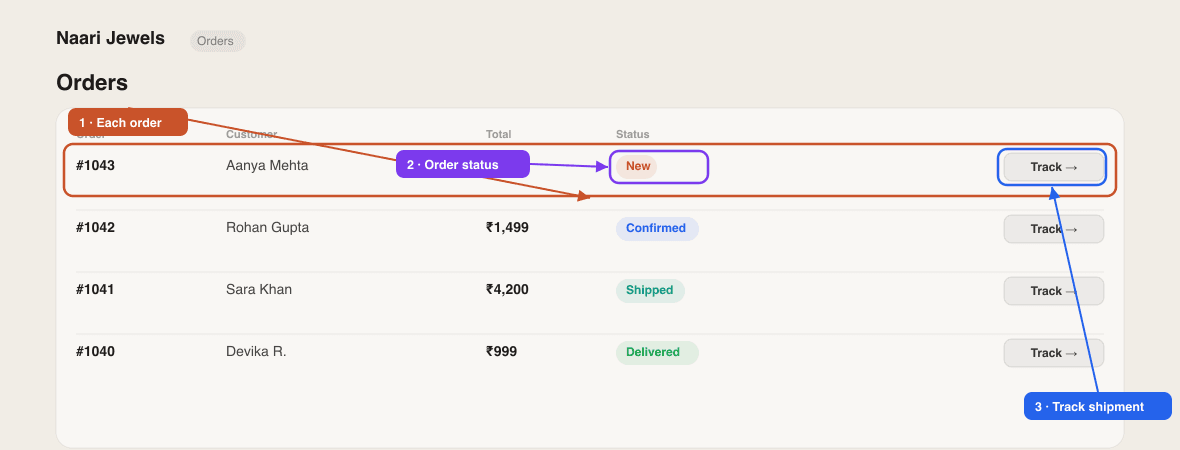
Every order lands in the Orders tab (and you get an email). Here's the full lifecycle — open an order to see its items, the customer's details, and the status controls.
Step 1 — Mark payment (for COD & manual orders)
Online (Razorpay) orders show ✓ Paid via Razorpay automatically — nothing to do. For COD or manual UPI orders, once you've actually received the money, click Mark as paid in the order.
Step 2 — Walk it through the stages
Use the status buttons to move the order forward. Each tap advances it one stage:
- Confirm — you've accepted the order (Pending → Confirmed).
- Mark shipped — you've dispatched it (Confirmed → Shipped). You can add a tracking link and a short note here.
- Out for delivery — it's on the way (Shipped → Out for Delivery).
- Mark delivered — done (→ Completed).
Need to jump straight to a status or add a comment/tracking link at any stage? Use More options in the status panel to set any status with a note. To stop an order, set it to Cancelled.
Step 3 — Keep the customer in the loop
Inside the order you'll find one-tap WhatsApp, phone and email buttons, plus a copy button for the delivery address. Add a tracking link when you mark it shipped so the customer can follow it from your storefront's Track Order page.
Step 4 — Tidy up
When an order is finished, Archive it to keep your live list clean (you can switch to archived orders anytime, or unarchive). Delete removes it permanently — that can't be undone.
Want courier automation?
Connect Shiprocket (Settings → Integrations) to auto-push confirmed orders, generate labels, and pull in live tracking. Self-shipping works perfectly without it — see Manage orders & shipments.
Related articles
Didn't find what you needed?