
How to sell a product in sizes & colours
Why your product form shows one price box — and how to turn on options so you can set a price and stock for each size or colour.
Last updated 18 June 2026
If your product comes in sizes or colours, you can give each option its own price and its own stock count. The catch that confuses most sellers: by default the product form shows one price box and one stock box — because your store starts in *simple* mode. You switch that on once, in your catalog setup.
Two separate questions
"Does each option cost a different price?" and "Do you track stock separately per option?" are independent. You can have same-price-but-separate-stock (common for clothing), or different-price-per-size, or both.
Step 1 — Turn on per-option pricing/stock
- 1Open Settings → Catalog & fields and find the Pricing & stock card.
- 2Set Pricing to Different price per option *only if* a Large should cost more than a Small. If every size is the same price, leave it on One price per product.
- 3Set Stock tracking to Stock per option if you want a separate count for each size/colour. (Other choices: One stock count per product, or Don't track stock.)
- 4Save. This changes what the Add Product form shows for *every* product — so it's worth doing before you add lots of items.
Full detail on these models: Set up your catalog.
Step 2 — Add the options on your product
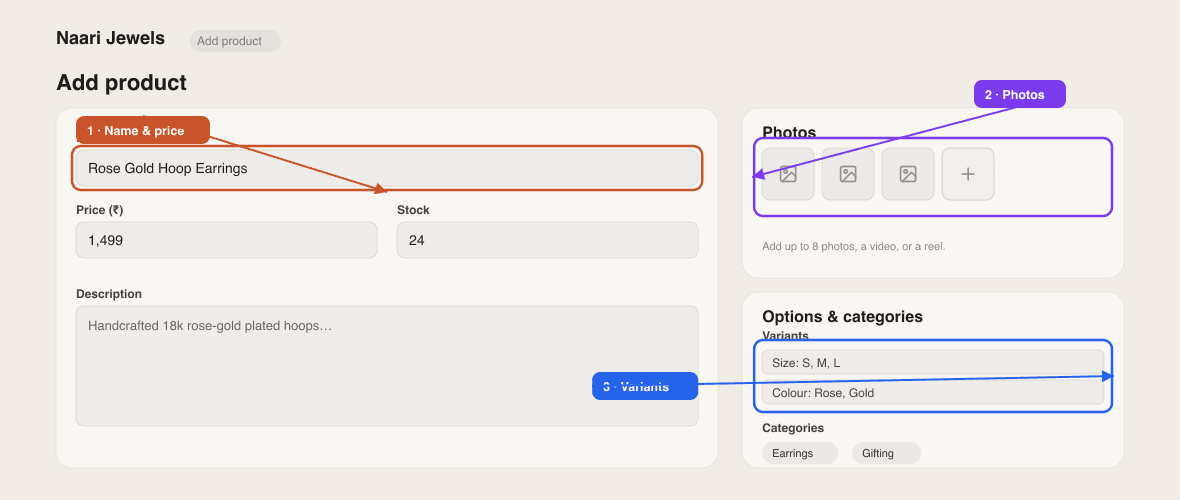
- 1Open the product (or Products → Add product) and find the Options section.
- 2Add an option type — e.g. Size — and its values separated by commas:
S, M, L, XL. - 3Add another if you need it — e.g. Colour:
Red, Blue, Black. - 4Click auto-generate variants to create every combination (S/Red, S/Blue, M/Red…) in one tap.
Step 3 — Fill in the variant grid
A grid of variants appears. Depending on the models you chose in Step 1, each row lets you set a price and/or a stock count for that exact combination. Remove any combination you don't actually sell.
Same options on most products?
Set your common options once under Settings → Catalog & fields → Default options (like Size or Colour) and they'll be pre-filled on every new product — you'll just tweak the values per item.
Add a size chart
Clothing buyers often want measurements. On the product, add an Info image (it shows as a *Size Chart* popup). You can rename that popup's default label under Settings → Pages & policies — see Policies & products page.
I only see one price box — where are options?
Scroll to the Options section on the product. If you also want a different price or separate stock per option, switch the models on first under Settings → Catalog & fields (Step 1).
Can different sizes share one stock number?
Yes — set Stock tracking to 'One stock count per product'. The whole product shares a single count regardless of options.
A customer can't buy a size that's in stock — why?
Check that the variant row has stock and isn't removed. Stock is enforced per variant when you track 'Stock per option'.
Didn't find what you needed?