
Add & manage products
Add products with photos, prices, sale prices, variants, stock and categories — and edit, duplicate, quick-edit or delete them anytime.
Last updated 18 June 2026
Products are the heart of your store. Open the Products tab to add and manage everything you sell. (Tip: do Set up your catalog first so the form asks for exactly what you need.)
Add a product
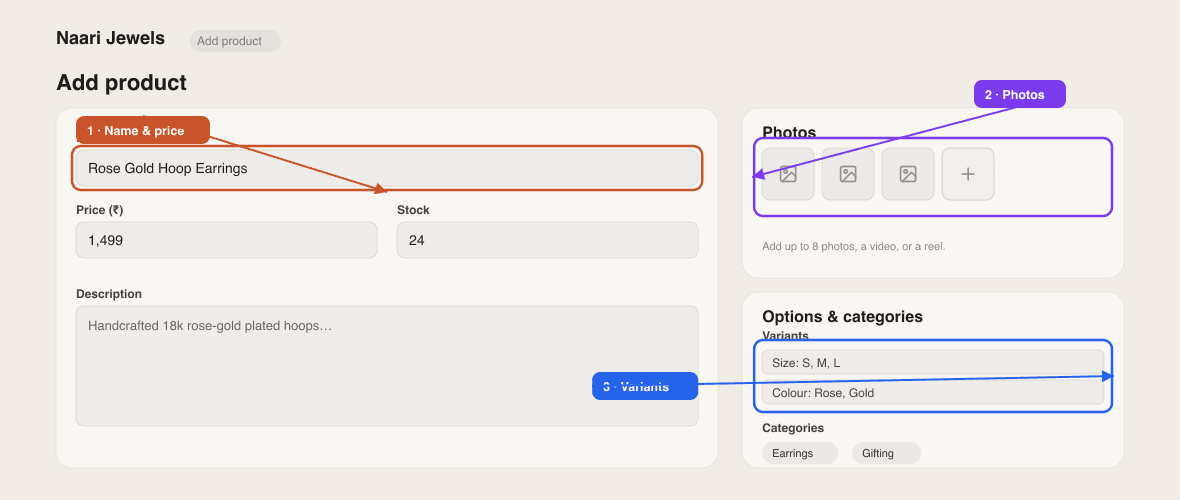
- 1Go to Products and click Add product.
- 2Enter a Product name (required) and a Price.
- 3Add Photos — drag or upload (each up to 5MB). The first photo is the cover; reorder or delete any.
- 4Optionally add a Description, one or more Categories, and an Item code / SKU.
- 5If the product comes in options (e.g. *S / M / L*), add them under Options — see *Variants* below.
- 6Set Stock if you track inventory (leave blank for unlimited).
- 7Click Save — or Save & add another to keep going. It appears on your storefront immediately once your store is published.
Sale prices, video & extras
- Original price — set a higher "was" price and your live price shows struck-through, so customers see the saving.
- Video / Instagram reel — add a product video or reel URL (if enabled in your catalog setup).
- Info image ("Size Chart") — attach a size chart or info popup image that customers can open from the product page.
- Extra details — any custom fields you added under Catalog & fields (material, weight, warranty…).
Variants & per-option pricing
Under Options, add an option type (e.g. *Size*) and its values (*S, M, L*), then auto-generate variants to create every combination at once. Depending on your catalog setup, each variant can carry its own price and its own stock count.
Manage your product list
Back on the Products tab you can:
- Search by name, item code, description or category, and filter by category.
- Spot low-stock products at a glance (a count appears when items are running low).
- Quick-edit price or stock inline in the table view — click the value, type, and press Enter.
- Edit any product by clicking it; Duplicate to start a new one from an existing item; Copy product link to share a single product.
- Delete a product (tap to confirm).
- Switch between cards and table views (table is desktop-only).
Photos look best square or portrait and at least 1000px wide — SitesPlaced optimises and resizes them automatically. On the free plan there's a product limit; you'll see a *Limit reached* note when you hit it (the Ecommerce plan removes it).
Related articles
Didn't find what you needed?