
Checkout: order methods & form
Choose how customers order — Direct Order, WhatsApp, COD or UPI — and control exactly what they fill in, the minimum order, trust badges and wording.
Last updated 18 June 2026
Open Settings → Checkout (or search *checkout* in Settings) to decide how customers place an order and exactly what details they give you.
Order methods
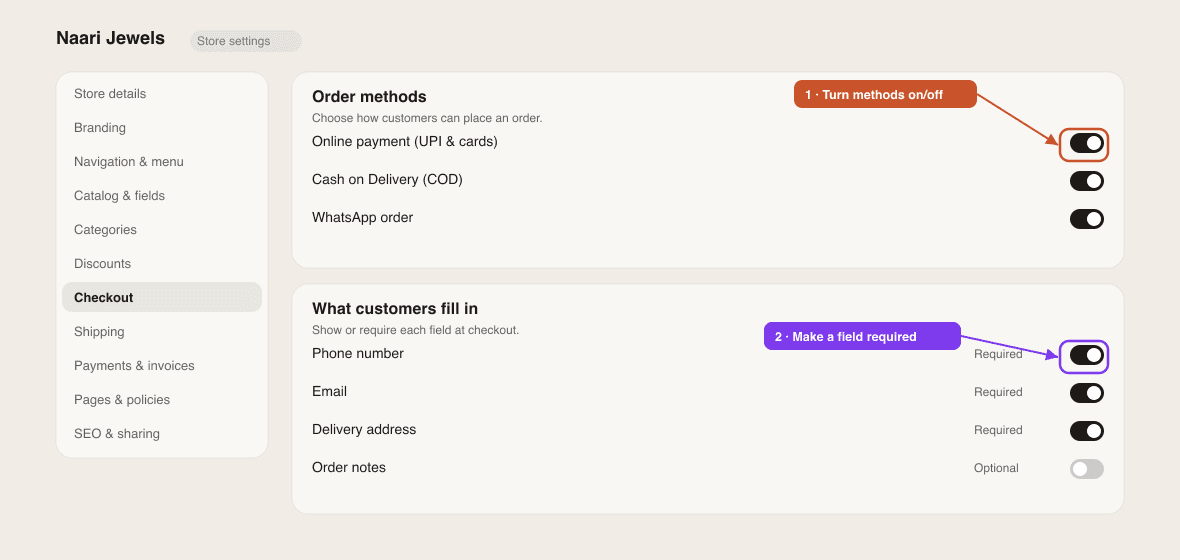
Pick a Default method — Direct Order (a normal checkout that emails you the order) or WhatsApp (the cart is sent to you as a WhatsApp message). Then tick which options to show customers:
- Show WhatsApp checkout — let customers send their cart over WhatsApp to confirm.
- Show Cash on Delivery — customers pay when the order arrives.
- Show Pay with UPI / Bank Transfer — show your UPI ID / bank details so customers can pay you manually.
Want instant online card/UPI payments?
Connecting Razorpay lets customers pay online instantly (UPI & cards), with money settling to your own bank. That's a one-time connection under Settings → Integrations — see Set up payments. The *Pay with UPI / Bank Transfer* toggle above is for manual payment instead.
Checkout form fields
Decide which details customers must give and whether each is required:
- Email, Phone and Delivery Address — show each, and mark it required (phone and address are needed for delivery and shipping).
- Order Notes — an optional box for special instructions; you can set its label and placeholder.
Minimum order, badges & wording
- Minimum order — set a minimum order value and the message shown when a cart is below it (set to 0 for no minimum).
- Trust badges — short reassurance lines (e.g. *100% secure payments*) shown near the checkout button.
- Checkout wording — customise the checkout title, subtitle, the order/WhatsApp button text, and the success message shown after an order is placed.
Adding delivery charges? See Set delivery charges.
Related articles
Didn't find what you needed?