
Design your storefront pages
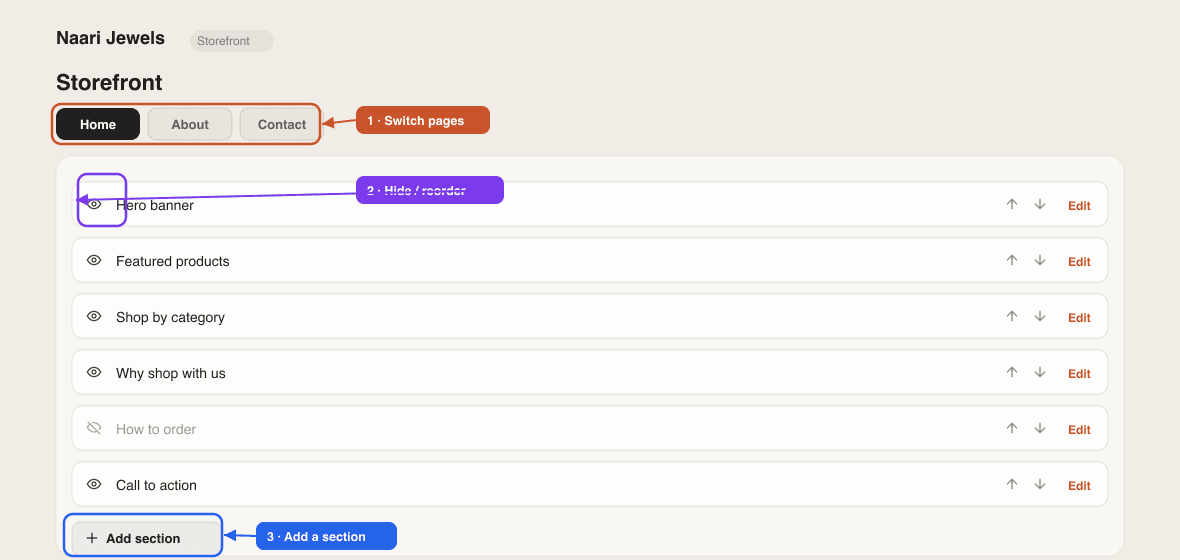
Use the Design tab to edit, add, hide and reorder the sections of your Home, About and Contact pages.
Last updated 18 June 2026
Your storefront is built from sections — the hero banner, featured products, trust badges, a "how to order" strip, and so on. You control which sections appear, what they say, and their order. It all lives in the Design tab.
Edit your pages
- 1From your store dashboard, open the Design tab.
- 2Pick the page to edit at the top — Home, About or Contact.
- 3Click a section to expand it and edit its text, images and layout.
- 4Use the eye icon to hide/show a section, the drag handle / arrows to reorder, and Add Section to insert a new one.
- 5Click the trash icon to delete a section (tap to confirm).
- 6Hit Save — the button activates whenever you have unsaved changes. Each page is saved on its own.
What sections are available
Click Add Section to see what your template offers. Typical sections include:
- Home — Hero, Featured Products, Browse by Category, Image Gallery, Product Marquee, Trust Badges, How to Order, About Preview, Social Embeds, and a CTA Banner.
- About — About Hero, Mission, Values, Our Story, and a CTA.
- Contact — Contact Header, Features, Contact Form, and an FAQ.
Many sections also have style variants (e.g. a hero can be centered, split, or video) — pick the look that fits. Product sections fill themselves from your catalogue automatically.
Looking for colours, logo, menu or blog?
Those have their own homes: Branding for logo/colours/fonts, Navigation & menu for header/footer links, and the Blog tab inside Design for posts.
Switching templates
Your template is chosen when you create the store and is locked afterwards, so your design stays consistent. To use a different template, create a new store with it.
Related articles
Didn't find what you needed?